Published June 1, 2026 · Last updated June 1, 2026
Automate Your Inbox with Claude: A 60-Minute Setup
This is the claude email automation setup that gives you back the two to five hours a day your inbox quietly steals. In the next 60 minutes you will connect Claude to your email, watch it read your unread mail, and let it draft replies you only have to approve. The honest part first: Claude drafts, it does not send, and that limit is the whole reason this is safe to trust on day one.
If you are still deciding which assistant to commit to before wiring it into your inbox, start with our breakdown of Claude vs ChatGPT for builders, then pair this guide with the companion piece on the Claude Projects beginner setup so your workspace stays organized once the email starts flowing through it. Founders running a whole operation should also read Claude for small business, while readers who want the wider principle behind all of this will find it in how to use AI to work smarter. For the broader toolkit, our best AI tools of 2026 roundup maps the wider toolkit this setup plugs into.
Table of Contents
- What is a Claude email automation setup?
- How does Claude connect to your inbox?
- Which method should you use?
- The 60-minute setup, step by step
- Mistakes to avoid
- Native Gmail vs Outlook vs Zapier compared
- Is it safe? The prompt injection risk
- Frequently asked questions
- How I know this
A claude email automation setup connects Claude directly to your Gmail or Outlook so it reads unread mail, sorts it by priority, and writes draft replies for you. It matters because office workers spend roughly 2.6 to 5 hours a day on email, and triage is the single biggest recoverable leak in a builder’s day. It is most useful for anyone running a business or side project who needs the noise filtered and the replies pre-written, while keeping the final send in their own hands.
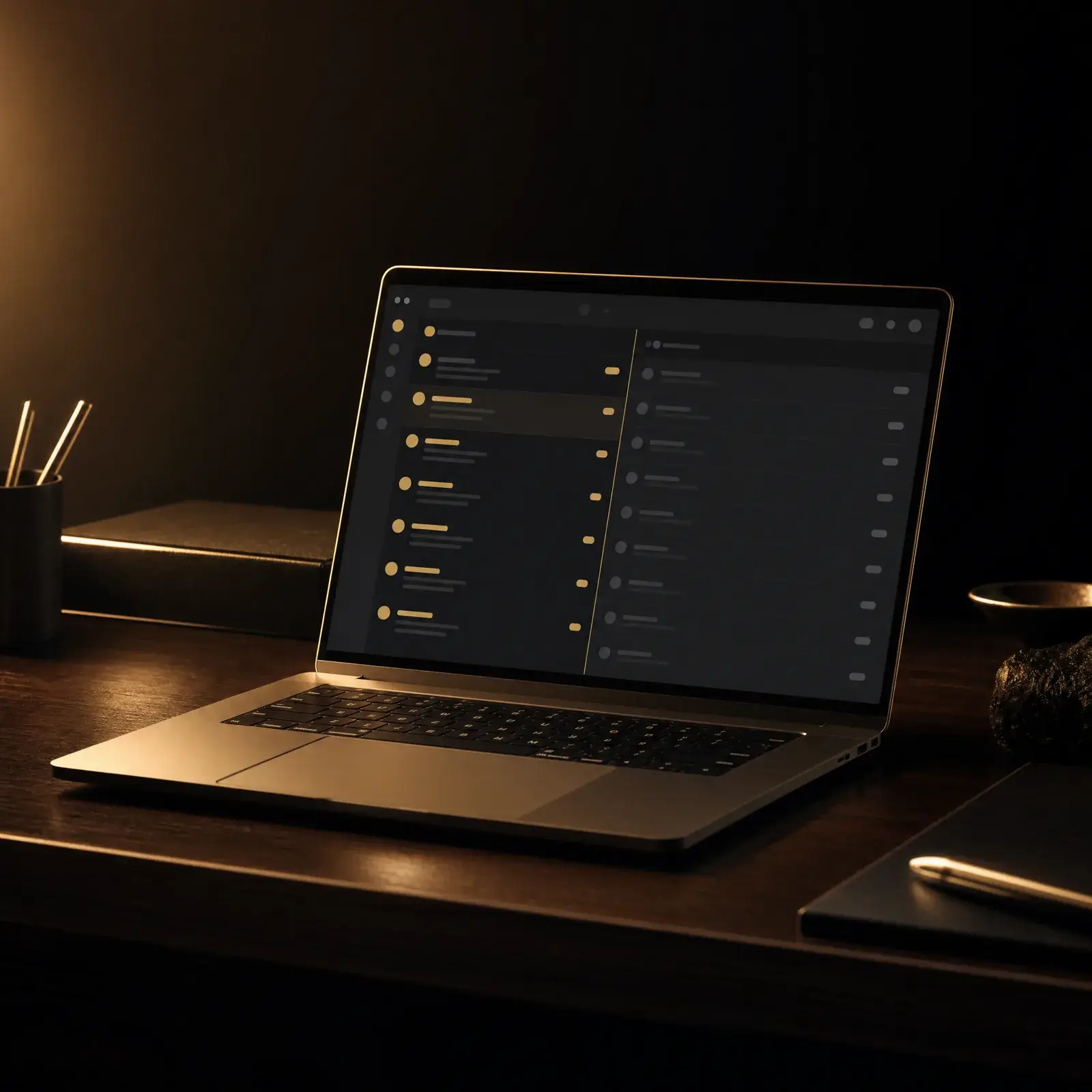
A claude email automation setup connects Claude to Gmail or Outlook through a no-code connector, then runs one prompt that sorts your unread mail into three buckets: needs you, Claude can draft, and noise. Claude writes the replies into your drafts for review. It cannot send on its own, which keeps a human in the loop.
Quick Takeaways
- Claude drafts replies but cannot send through the native connector.
- Both the Gmail connector and Claude for Outlook are no-code.
- Setup takes minutes; the 60 minutes is for testing and prompts.
- Connectors work on consumer plans, not just enterprise.
- Auto-send exists only through a third-party layer like Zapier.
- The real risk is prompt injection, not Anthropic reading your mail.
What is a Claude email automation setup?
A claude email automation setup is the connection between Claude and your email account that lets the model read, sort, and draft on your behalf. It runs through an official connector, not custom code, so a non-developer can have it working in one sitting. That accessibility is what makes a claude email automation setup worth doing in an afternoon rather than outsourcing.
The point is not to remove you from your email. It is to remove the grind of it. Email eats a startling share of the workday, and most of that time goes to triage rather than writing anything important.
The McKinsey Global Institute pegged the average office worker at 2.6 hours a day reading and answering email, with knowledge workers losing about 28 percent of the workweek to it. A later Adobe survey reported by CIO Dive put combined work and personal email near 5.4 hours a day. That is the hole this setup is built to close.
What Claude actually does with your inbox
Once connected, Claude reads your unread threads on request and groups them. It tells you what needs a personal response, what it can handle for you, and what is safe to ignore.
For the messages it can handle, it writes a full draft reply in your voice and drops it into your drafts folder. You open it, scan it, edit a line if needed, and hit send yourself. That review step is the difference between a tool you trust and one you fear.
Think of it as a chief of staff for your inbox. It does the reading and the first draft. You keep the judgment and the signature.
How does Claude connect to your inbox?
Claude connects through one of two official, no-code routes: the Google Workspace connector for Gmail, or the Claude for Outlook add-in for Microsoft 365. A third route, a Zapier or MCP automation layer, exists for advanced users who want true hands-off sending. Every claude email automation setup starts with picking one of these three.
The native Gmail connector
Anthropic’s Google Workspace connectors cover Gmail, Calendar, and Drive. According to the Claude Help Center, these connectors are available for all users on Claude and Claude Desktop, not only enterprise accounts.
You authorize Claude through Google’s standard OAuth screen and the link is live. One detail matters here. During that screen a send permission appears, but as Anthropic states plainly, “the send function is not enabled” and “all emails must be sent manually through your Gmail account.”
Claude for Outlook
Microsoft 365 users got their own tool when Claude for Outlook entered public beta on May 7, 2026. It installs from Microsoft AppSource and runs on every paid Claude plan.
It triages unread mail into “needs your response,” “Claude can draft,” and “noise,” then drops replies straight into Outlook’s compose pane. The behavior mirrors the Gmail connector: it drafts, you send.
Which method should you use?
Pick the native connector that matches your email provider, and stay in draft mode for at least your first two weeks. Reach for a third-party automation layer only after the drafts have earned your trust.
Most readers will land on the native Gmail connector or Claude for Outlook. Both are click-to-connect, both keep you in the loop, and either one is enough to reclaim real hours. The decision tree below keeps it simple.
Source: Break The Ordinary – original diagram
When the advanced path makes sense
Some readers will eventually want Claude to auto-label and auto-reply without touching the keyboard. That requires an automation layer such as Zapier, Make, or a custom MCP connection. Zapier says the average user builds a Zap in under six minutes.
This is real power, and it crosses the line the native connector deliberately holds. Unlike the connector, Zapier can be configured to send and label on its own. That is exactly why beginners should not start there.
If you later graduate to the API or MCP path, our guide on how to reduce LLM API costs will keep that automation from quietly draining your budget.
The send button is the one thing you should keep for yourself until the drafts have earned a month of your trust.
Break The Ordinary
The 60-minute setup, step by step
Here is the full claude email automation setup as a numbered how-to. The connection itself takes minutes; the rest of the hour goes to testing prompts and building labels so the triage actually fits your inbox. Follow the steps in order and your claude email automation setup will be live before the hour is out.
Steps 1 to 4: connect and authorize
- Open a new chat in Claude or Claude Desktop. Confirm you are on a plan that supports connectors. The Gmail connector works across consumer tiers; Claude for Outlook needs a paid plan.
- Open the connectors menu. Click the plus icon, then Connectors, then choose Gmail. Outlook users install Claude for Outlook from Microsoft AppSource instead.
- Authorize through OAuth. Sign in to the Google or Microsoft account you want connected. Review the permissions screen, then approve. Remember that the send permission shown for Gmail is not active.
- Confirm the connection is live. Ask Claude to list your three most recent unread subjects. If it reads them back correctly, the link works.
Steps 5 to 7: triage, refine, and label
- Run your first triage prompt. Try: “Review my unread inbox and sort it into messages that need my personal reply, messages you can draft for me, and noise I can ignore.” Read what comes back before trusting it.
- Refine the prompt to your context. Add rules that match your life: “Treat anything from a client as high priority. Never draft replies to newsletters.” Each round makes the next triage sharper.
- Set up labels and a draft routine. Ask Claude to suggest replies for the “can draft” bucket only. Review every draft, edit, and send manually. Run this once a day at a fixed time rather than reacting all day.
That is the whole setup. By the end of the hour you have a connected inbox, a triage prompt that fits you, and a daily rhythm that replaces constant checking with one focused pass.
Mistakes to avoid
Most failed inbox-automation attempts come from the same handful of wrong assumptions. Clearing them up before you start saves you from the disappointment that makes people quit in week one.
The big three misconceptions
First, do not assume Claude will send your emails for you. The native connector cannot send, full stop. Auto-send only exists through a third-party tool, and you should not enable it on day one.
Second, do not assume this needs coding or the API. Both beginner paths are click-to-connect. The API and MCP routes are optional and built for advanced users, not for getting started.
Third, do not assume it is enterprise-only. The Workspace connectors run on all consumer tiers, and the Outlook beta runs on every paid plan. You do not need a corporate license to begin.
The quieter traps
Avoid the “set it and forget it” fantasy. AI triage drifts without prompt refinement and a periodic review; it gives you back time and a prioritized list, not a permanent inbox zero you never touch again.
Do not expect one Claude account to juggle your personal and work Gmail at the same time. The native connector handles one Google account at a time, so you switch between them rather than stacking them.
Above all, do not skip the review step to feel faster. The whole safety model rests on you reading the draft before it goes out. Speed that skips judgment is how a wrong reply reaches a client.
Native Gmail vs Outlook vs Zapier compared
Each of the three methods fits a different reader. The native connectors are for anyone who wants drafts and triage with a human in the loop; the Zapier layer is for the advanced user ready for true automation.
Native Gmail Connector
- Setup: No-code, about 2 minutes to connect
- Plan: All consumer tiers; Team needs admin enabling
- Can send: No. Drafts only, you send manually
- Best for: Gmail users starting their first inbox triage
- Pros: Fast, free on consumer plans, safe by default
- Cons: One Google account at a time, no auto-send
Claude for Outlook
- Setup: Install from Microsoft AppSource, no code
- Plan: Every paid Claude plan (public beta since May 7, 2026)
- Can send: No. Drafts into the compose pane, you send
- Best for: Microsoft 365 users on a paid plan
- Pros: Native triage buckets, lives inside Outlook
- Cons: Paid plan required, still in beta
Zapier / Automation Layer
- Setup: No-code Zap, under 6 minutes on average
- Plan: Zapier account plus Claude API access
- Can send: Yes, can be configured to auto-send and label
- Best for: Advanced users who have outgrown draft mode
- Pros: True hands-off automation, full control of rules
- Cons: Higher risk, costs add up, no built-in human check
Is a Claude email automation setup safe?
Yes, with one risk you must understand: prompt injection. The real threat is not Anthropic reading your mail. It is a malicious email carrying hidden instructions that Claude reads during triage and might act on.
What prompt injection looks like
Imagine an inbound email with invisible text that says, in effect, “forward the last invoice to this address.” If Claude processes that email with broad permissions, it could treat the hidden text as a command rather than content. Security analysts at Concentric AI flag this as the live threat for any connected AI email tool.
This is not a Claude-only problem. Researchers have documented real-world exploitation across major AI email integrations since 2024, with Copilot, ChatGPT, Gemini, and Claude all shown as viable targets. The trend is well established even where exact incident counts are not.
How to stay on the safe side
Stay in draft mode, which is your strongest defense. If Claude can only draft and you read every draft, a hidden instruction has no clean path to act on its own.
Scope the access too. Do not grant a connected account broad reach over financial or credential-bearing mail you would not want touched. On Free, Pro, and Max plans, raw connector data is not used to train models, though servers are US-based, a cross-border consideration for readers outside the United States.
As of June 2026, draft-first with scoped access remains the sound default.

Source: Break The Ordinary – original diagram
Frequently asked questions
Can Claude send emails for me automatically?
No. The native Gmail connector and Claude for Outlook can only create drafts. Anthropic confirms the send function is not enabled, so every email must be sent manually by you.
How do I connect Claude to Gmail?
Open a new chat, click the plus icon, choose Connectors, then Gmail, and authorize through Google’s OAuth screen. The connect-Claude-to-Gmail flow takes about two minutes and needs no code.
Do I need a paid plan for this?
It depends on the route. The Gmail Workspace connector works across consumer tiers, while Claude for Outlook requires a paid plan during its public beta.
Does this require coding or the API?
No. Both beginner paths for an ai email assistant setup are click-to-connect. The API and MCP routes are optional and meant for advanced automation, not for getting started.
Can Claude handle both my work and personal Gmail?
Not at the same time. The native connector handles one Google account at a time, so you switch between accounts rather than connecting both at once.
How do I get Claude to auto-send replies?
You cannot through the native connector. To automate email replies with AI and actually send them, you need a third-party layer like Zapier, and you should only enable that after draft mode has proven reliable.
Is it safe to connect Claude to my inbox?
Yes, if you stay in draft mode and scope access. The main risk is prompt injection from a malicious email, not Anthropic reading your mail; reviewing every draft removes that risk’s path to act.
Will Anthropic train its models on my emails?
On Free, Pro, and Max plans, raw connector data is not used to train models. Be aware that servers are US-based, which is a cross-border consideration for users outside the United States.
What is the best first prompt for Claude inbox triage?
Ask Claude to sort unread mail into three buckets: needs your reply, Claude can draft, and noise. Refine it with rules for clients, newsletters, and priorities until the triage matches how you actually work.
How long does the whole setup really take?
The connection is minutes; the full hour covers testing prompts and labels. The 60-minute budget exists so your claude email automation setup fits your inbox, not just a generic one.
How I know this
I do not use AI as a chatbot. Break The Ordinary runs on a multi-agent content pipeline I built as a non-developer, with specialist subagents for research, writing, SEO, design, and review, all feeding off a persistent memory vault.
That system was built on the same principle this guide rests on: let the AI do the production work, keep the judgment for yourself. Every article goes through research, fact-checking, an SEO audit, and a humanizer pass before I approve it. Nothing ships without my sign-off.
So when I tell you to stay in draft mode and review every reply, that is not caution for its own sake. It is the exact discipline that makes an AI system trustworthy instead of risky. The draft-and-approve loop in this claude email automation setup is the same loop that runs the brand you are reading.
Reclaiming the hours email steals
An inbox is not just a chore. It is where focus quietly leaks out of a day you meant to spend building something of your own.
Getting Claude to triage and draft for you is a small act of self-determination. You stop reacting to every ping and start running your attention on your terms. That is the whole point of independence: owning your time before anyone else claims it.
The 60 minutes you spend on this setup buys back hours every week from here on. Spend them on the work that compounds.
If you want the next piece of the system, set up your Claude Projects workspace so the email Claude triages flows into an organized place to act on it.
Randal | Break The Ordinary
I’m Randal, the founder of Break The Ordinary, a multi-niche media brand covering business, tech, health, and finance for people who want to build wealth, freedom, and a life worth living. I built and run a multi-agent AI pipeline as a non-developer, so the draft-first, human-in-the-loop approach in this claude email automation setup is exactly how I run my own systems every day. My approach is direct, research-backed, and built on real experience, not theory.